








This application will allow users from specific user groups to add notes to members, in order to have better control of the member's life in the community
Adding Notes: Users from specific groups can add notes in two places:
+ Create menu
Directly on user Profile, on a new tab called Notes, where notes can be edited or deleted, if you have permission to do it.
Directly on member's posts
Features:
New tab called Member Notes on ModeratorCP -> Member Management to display notes from all members, where notes can be edited or deleted, if you have permission to do it.
Number of notes on user's posts, linked to the tab in his profile. You can also add a note from the post.
Number of notes on user's personal card (mini profile on hover user link)
Widget to display the latest notes.
Notification to all users who can view notes when someone gets a new note.
Ability to send a private message to the member with the note content.
Group permissions:
Can view notes
Can add notes
Can edit notes
Can delete notes
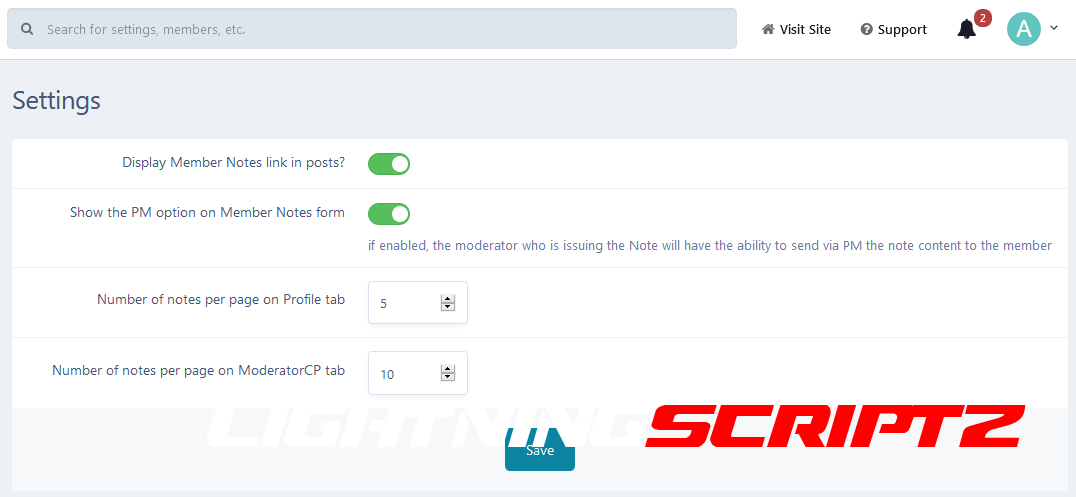
Settings:
Show the PM option on Member Notes form
You may only provide a review once you have downloaded the file.
There are no reviews to display.