




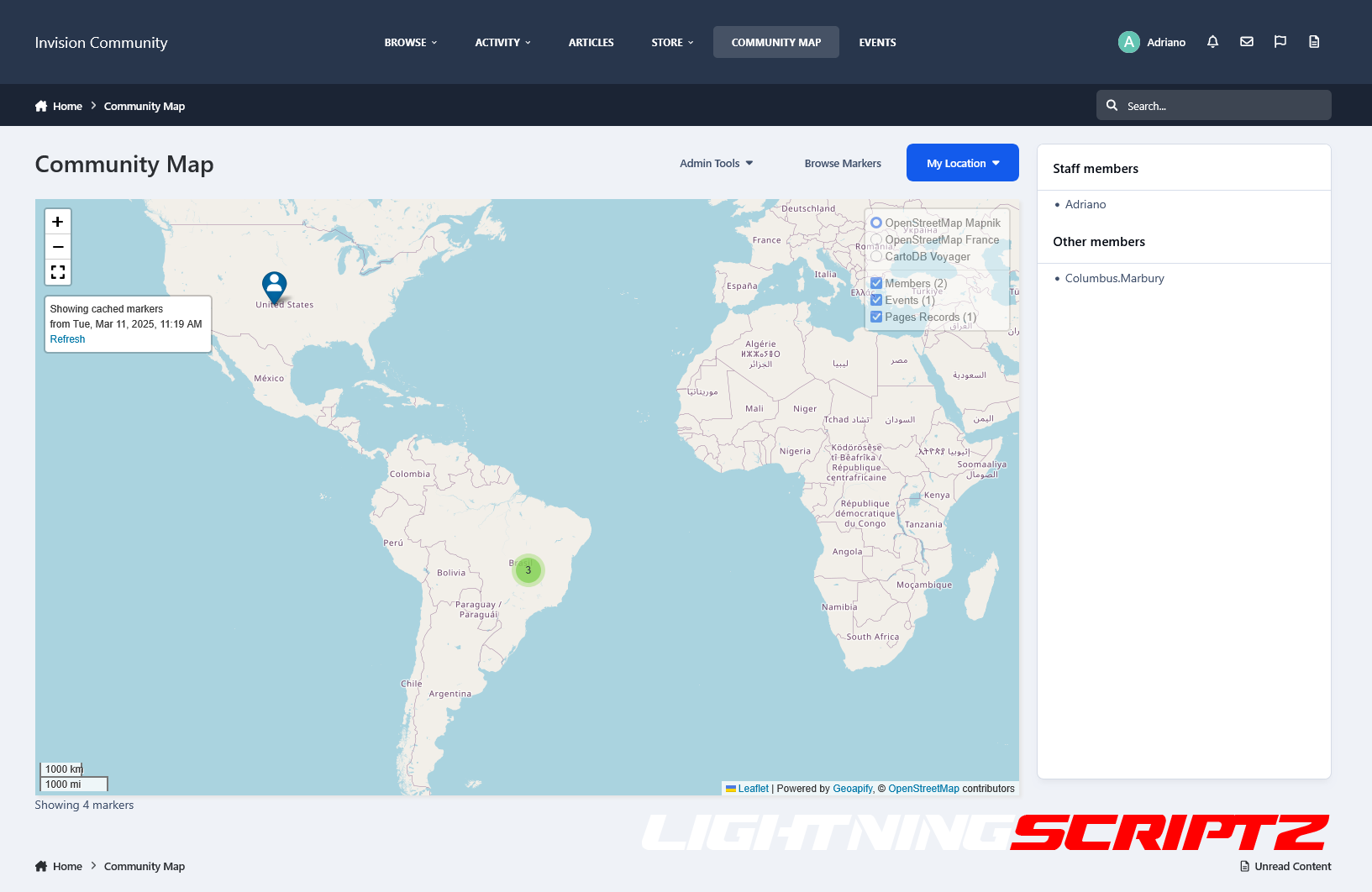
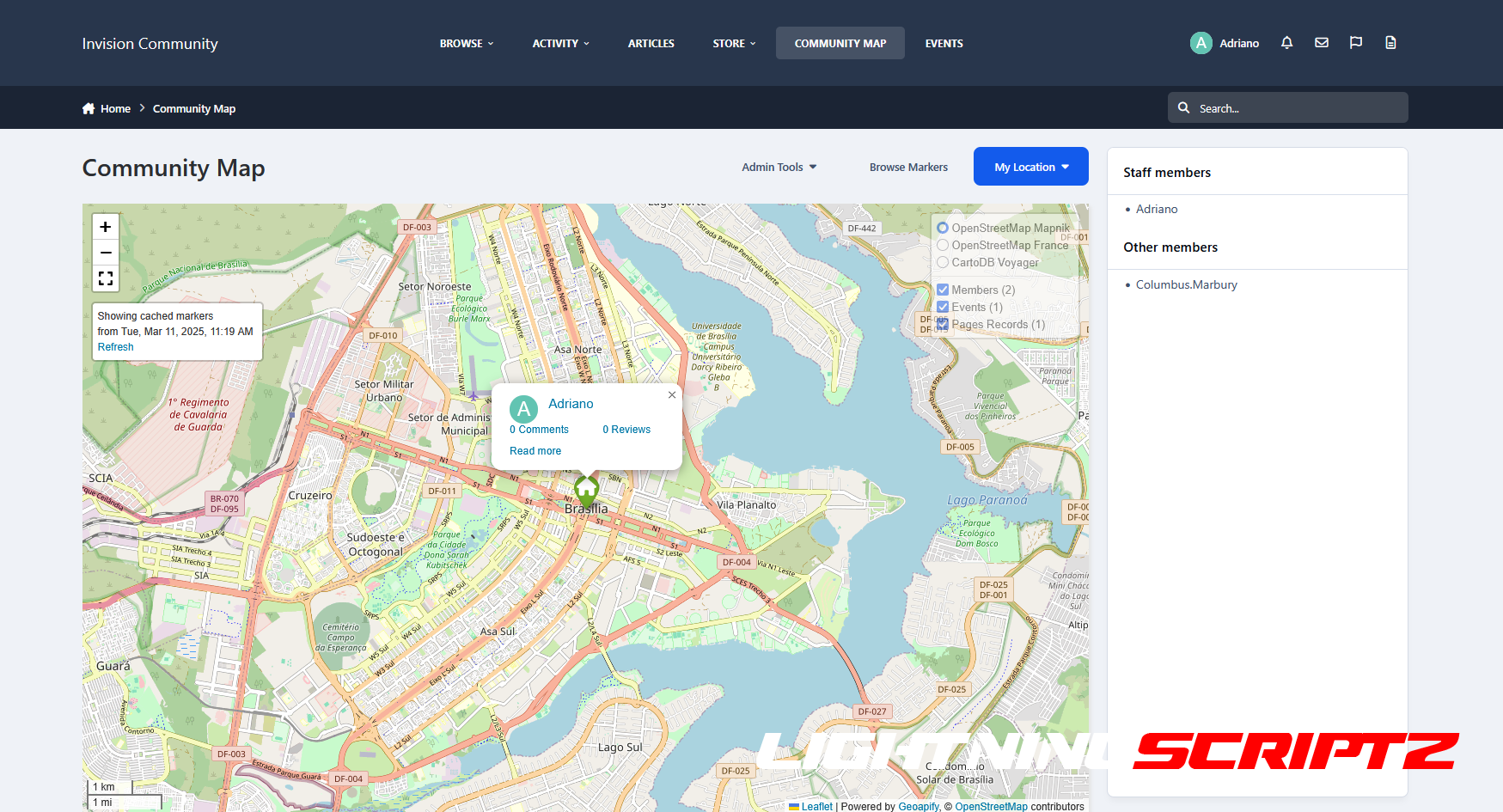
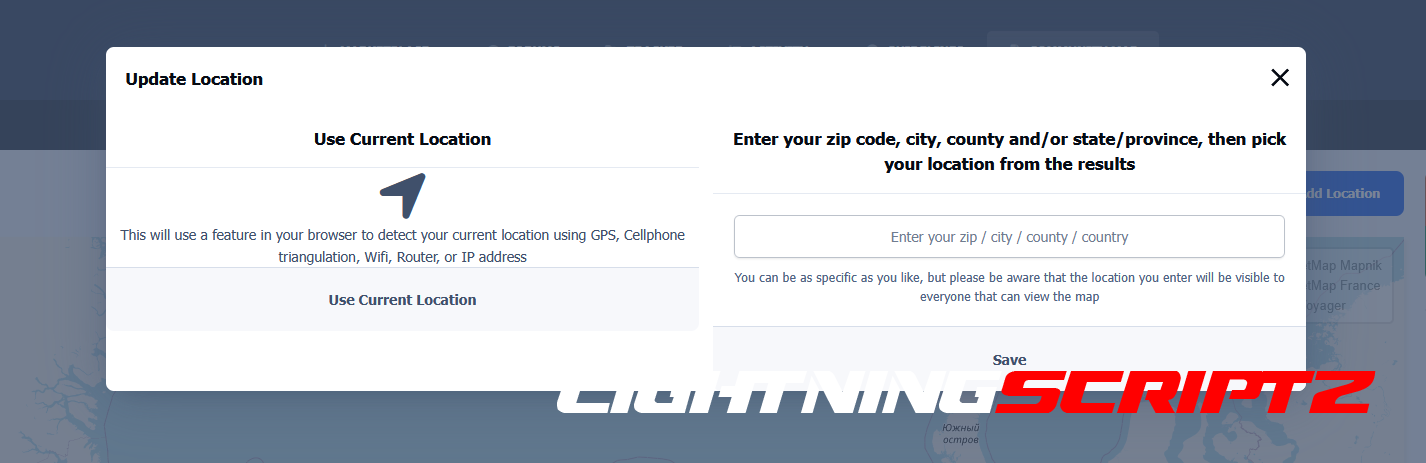
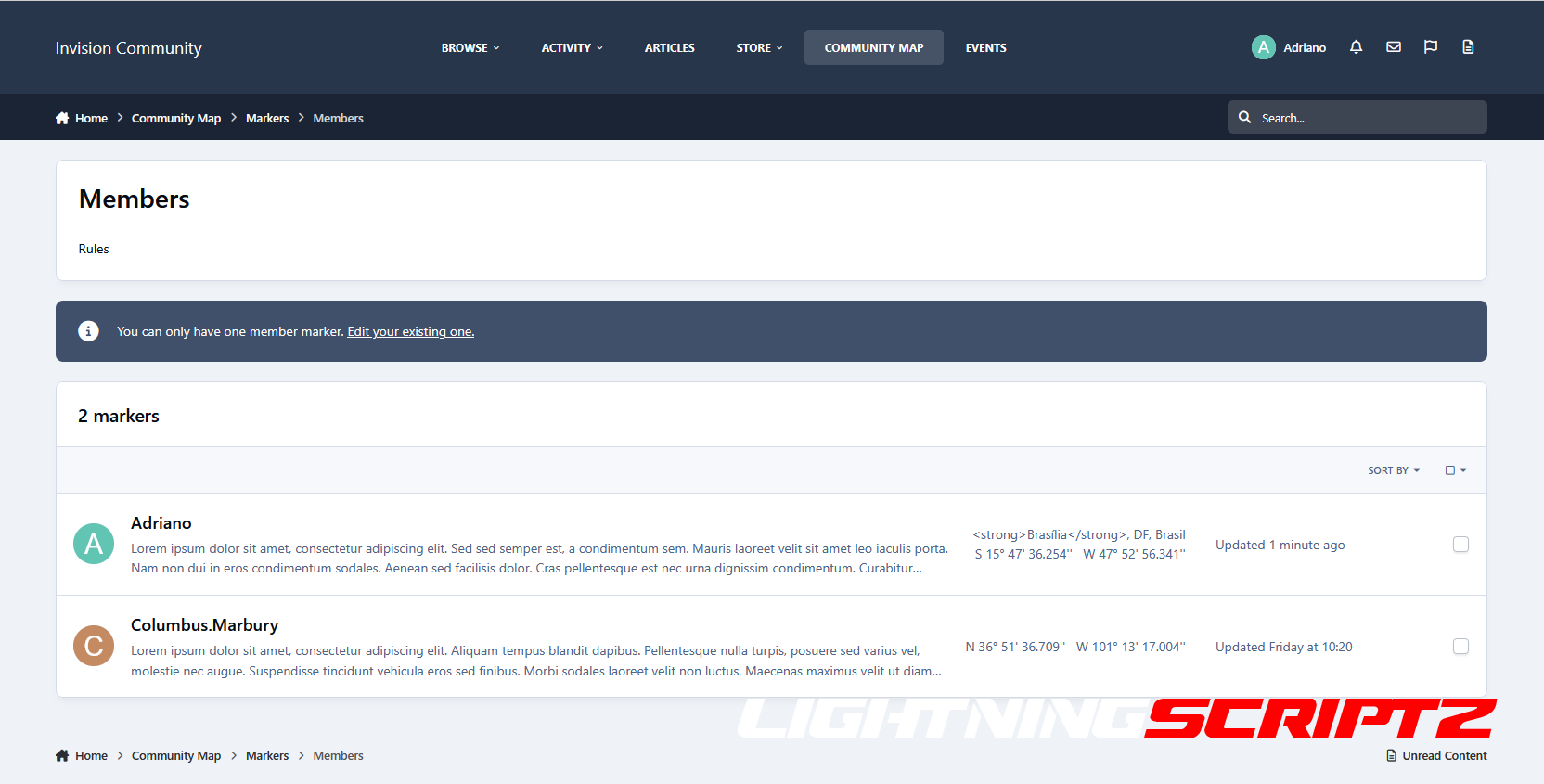
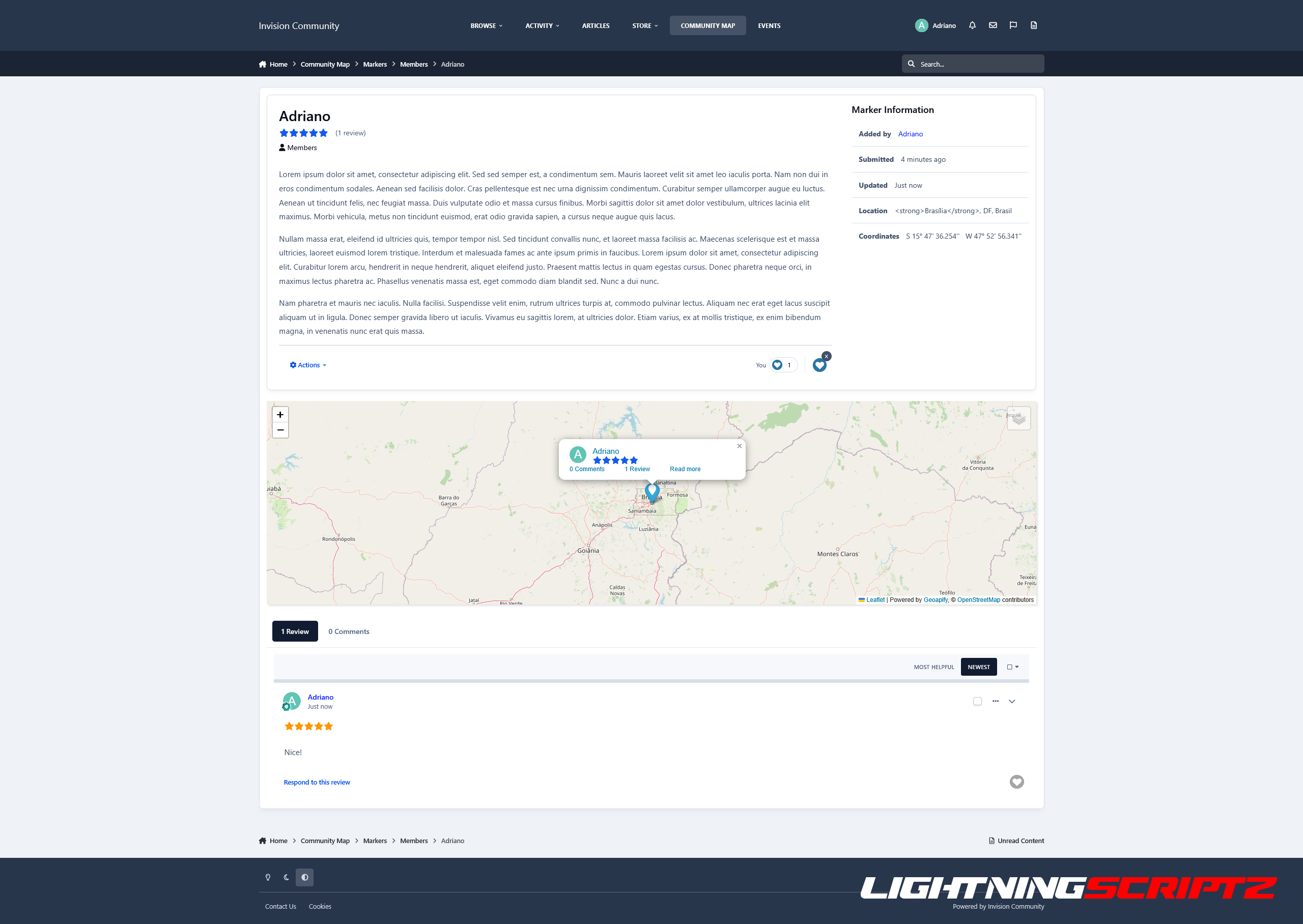
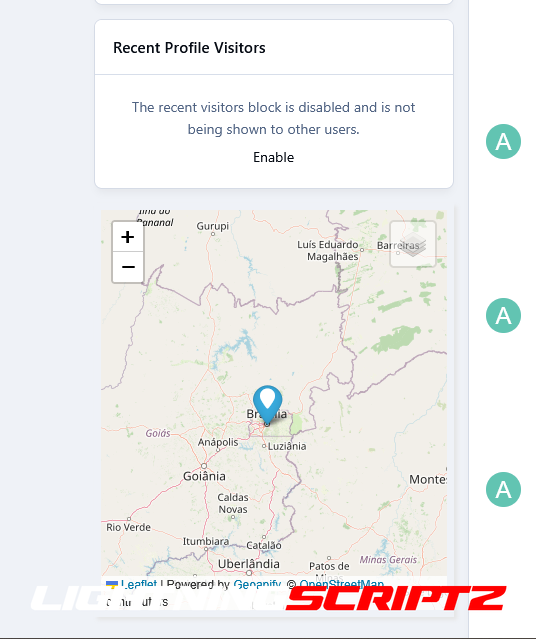
Community Map is an application that allows users to put their exact or approximate location onto an interactive map. Create unlimited markers and map out the world!
Highlights:
Create unlimited marker groups for member meet-ups, exhibits, landmarks, highlights, shops, or other geographic listings. Maps can overlap in a global map.
Administrators can control what member groups are allowed to post to map
Import markers from Google Earth using a .kml or .kmz file
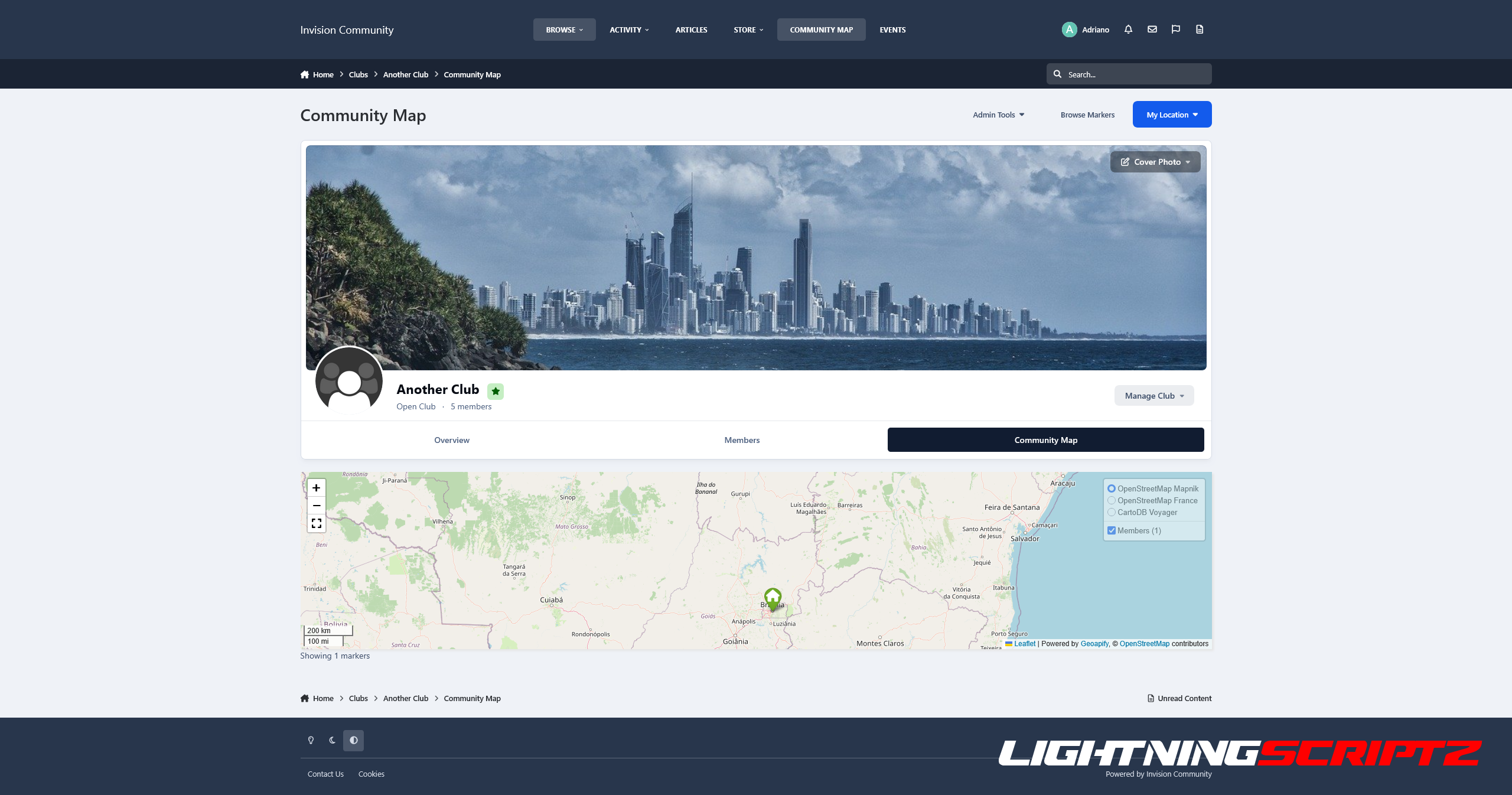
Integrates with Clubs. It shows club members on a dedicated club map, and the club location is shown on the global map.
Show Gallery images (as of 1.3), Calendar events, Calendar venues, and Page record addresses on the map
NOTE:
This is a RELEASE CANDIDATE version, so you may encounter issues or areas that need refinement, particularly with the layout and visual elements. Please test the app and share any findings in the support topic. New versions will be released to address any issues.
What's New in Version 2.0.0
Released
No changelog available for this version.
You may only provide a review once you have downloaded the file.
There are no reviews to display.